Does iMovie on iPhone remove silence automatically?
No. iMovie for iPhone has no silence-detection feature — no "remove pauses" button, no threshold control, no one-tap tightening. It is a manual editor: if you want a silent gap gone, you find it yourself, split the clip on both sides of it, and delete the middle.
That surprises people, because desktop editors increasingly offer some form of automatic pause cutting. iMovie's mobile app keeps things simple instead — which is great for stitching clips and adding titles, and slow for the very repetitive job of removing dead air.
The manual method, step by step
1. Open your project and tap the clip in the timeline so it is selected. 2. Scrub the playhead to the start of a silent gap, pinching outward on the timeline to zoom in so you can place it precisely. 3. Tap Split — the clip divides at the playhead. 4. Scrub to the end of the gap and Split again, so the silence becomes its own segment.
5. Select that middle segment and Delete. iMovie closes the space, so the remaining pieces join together. 6. Repeat for every pause in the clip, then play the whole thing back with sound before exporting.
Use the waveform to find the gaps
Silences are much easier to find by eye than by ear. In the timeline, the clip's audio shows as a waveform — the flat, thin stretches are your pauses. Zoom in, split where the waveform flattens out, and split again where it picks back up.
Leave a sliver of flat line on each side of the speech when you cut. Splitting right at the edge of a word tends to clip the first or last syllable, which sounds worse than the pause you removed.
Why this breaks down on real recordings
For a clip with three or four pauses, split-and-delete is perfectly fine — typically a minute or two of work. The trouble starts with real spoken footage. A ten-minute talking-head video can easily contain forty or more pauses, and each one needs two precise splits placed by fingertip. That is the better part of a hundred edits, every one of them identical.
Fatigue makes it worse: by the twentieth pause the cuts get sloppier, words start getting clipped, and you either slow down to fix them or ship a rough edit. This is exactly the kind of repetitive, rule-based work software should be doing for you.
Other limits worth knowing
iMovie on iPhone is built around video projects, so it is the wrong tool for audio-only files — a podcast MP3 or a WAV voice memo is not something you can simply open and trim there. There is also no notion of a threshold: what counts as "silent" is entirely your judgment call, clip by clip, which makes consistent pacing across a series hard to achieve.
None of this is a knock on iMovie — it is free, stable, and excellent at assembling clips, adding titles, and dropping in music. It just was not designed to be a silence remover.
The automatic alternative: clean the clip first
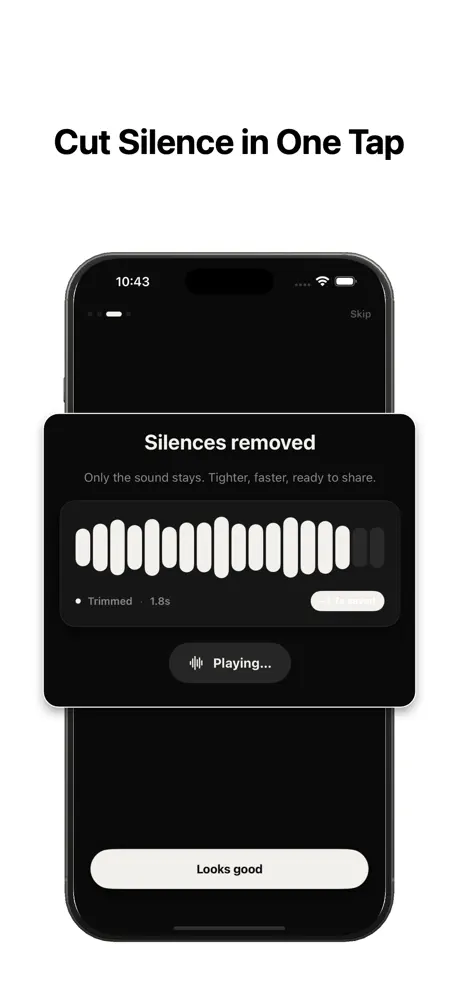
The faster route is to remove the silence before the clip ever reaches iMovie. [SilenceRemover](/) scans the audio track, finds every stretch that falls below a loudness threshold for longer than a minimum duration, and cuts picture and sound together in one pass — entirely on your iPhone, with nothing uploaded and no account. You preview the result, adjust, and export at the original quality.
Then import the tightened MP4 or MOV into iMovie and do what iMovie is genuinely good at: titles, transitions, music, and arranging clips. You get automatic detection and iMovie's polish instead of choosing between them.
A realistic before-and-after
For example, a ten-minute tutorial with roughly forty pauses: cutting manually in iMovie means about eighty splits and typically half an hour or more of timeline work. The automatic pass is a few taps — import, preview, perhaps one settings adjustment, export — and the result is more consistent, because every cut follows the same rule instead of forty separate judgment calls.
The tightened clip is typically noticeably shorter as well, which matters for watch time on YouTube and for staying under length limits on short-form platforms.
When manual editing in iMovie is still the right call
Keep it manual when there are only a handful of pauses, when a cut needs to land on a visual moment rather than an audio one — a look to camera, an object entering frame — or when a pause is deliberate and only you know which beat to keep.
Automatic removal follows loudness rules; it cannot tell a dramatic pause from a lost train of thought. If your edit is built on timing choices like that, either protect them with a longer minimum silence length or place those particular cuts yourself.
Settings to start with when you go automatic
For talking-head and tutorial footage, start with the threshold just below your speaking volume, a minimum silence length of about half a second, and 80–120 milliseconds of padding, then preview and adjust one control at a time. The complete guide to removing silence from audio and video covers what each control does and how to tune it for different kinds of recordings.